
Smart Section Box
Configure how the Smart Section Box tool behaves when creating and adjusting section boxes.
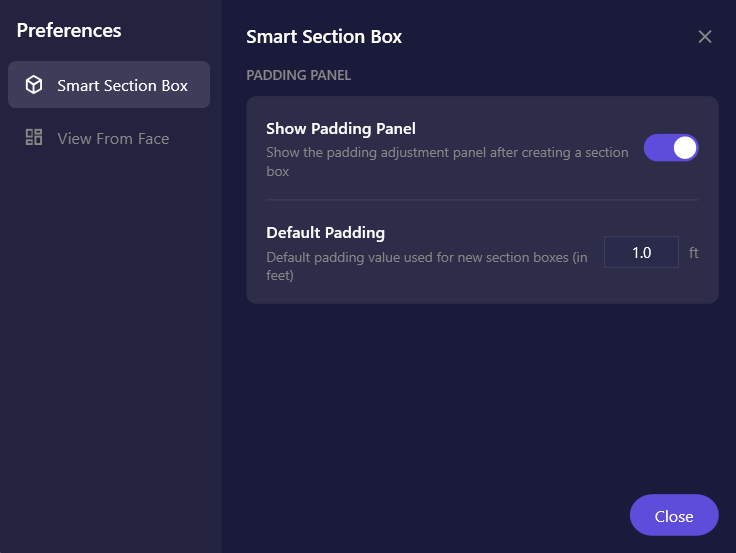
Settings
Section titled “Settings”| Setting | Description | Default |
|---|---|---|
| Show Padding Panel | Display the padding adjustment panel automatically after creating a section box. When disabled, you can still access padding controls via the ribbon. | On |
| Default Padding | Initial padding value (in feet) used when creating new section boxes. This is the starting value shown in the padding panel. | 1.0 ft |
Padding Panel Behavior
Section titled “Padding Panel Behavior”When Show Padding Panel is enabled:
- The panel appears immediately after creating a section box
- You can adjust padding interactively before moving on
- Check “Don’t show automatically” in the panel itself to disable future auto-display
When disabled:
- Section boxes are created with the default padding applied
- The view switches to 3D without showing the panel
- Use the command again with existing section box to toggle it off
Default Padding Tips
Section titled “Default Padding Tips”- Interior spaces: Try 1-2 feet for furniture and equipment views
- Structural elements: Use 3-5 feet for framing and column views
- Large assemblies: Consider 5-10 feet for equipment rooms
- Values are clamped between 0 and 100 feet
Related Pages
Section titled “Related Pages”- Smart Section Box - Full tool documentation
- Preferences - Main preferences overview