
Align View to Section Box
Align View to Section Box lets you quickly reorient a 3D view to look directly at any face of your section box. Temporary cyan faces appear on all six sides of the section box, and clicking any face instantly orients your camera to that viewing direction with automatic zoom-to-fit. This is ideal for BIM coordination, detailed inspections, and quickly modifying elements in an orthographic view without the need for sections or plans.
Getting Started
Section titled “Getting Started”Find Align View to Section Box on the Amorphous ribbon tab in the Section Box Tools panel.
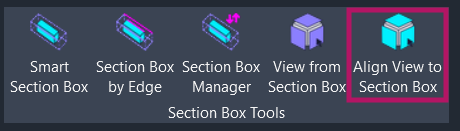
The button is enabled when:
- You are in a 3D view
- The 3D view has an active section box (Section Box checkbox enabled in view properties)
The button is grayed out if these conditions are not met.
Features
Section titled “Features”- Visual face selection - Temporary cyan semi-transparent faces appear on all six sides of the section box for intuitive direction picking
- Six orientation options - Top, Bottom, Front, Back, Left, and Right views relative to the section box orientation
- Rotated section box support - Directions are relative to the section box’s local axes, not world coordinates
- Automatic zoom-to-fit - After orienting, the view automatically zooms to frame the section box bounds
How to Use
Section titled “How to Use”Basic Workflow
Section titled “Basic Workflow”- Open a 3D view with an active section box
- Click “Align View to Section Box” on the ribbon
- Cyan faces appear on all six sides of the section box
- Click any cyan face to choose the viewing direction
- The view instantly reorients to look straight at the section box from that direction
Orientation Directions
Section titled “Orientation Directions”The six faces correspond to viewing directions:
| Face | Viewing Direction |
|---|---|
| Top | Looking down from above |
| Bottom | Looking up from below |
| Front | Looking at the front face |
| Back | Looking at the back face |
| Left | Looking at the left side |
| Right | Looking at the right side |
Canceling Selection
Section titled “Canceling Selection”Press ESC at any time during face selection to cancel the operation. The cyan visual faces are automatically removed.
Use Cases
Section titled “Use Cases”BIM Coordination
Section titled “BIM Coordination”Quickly snap to orthographic views of a section box region for clash detection or element inspection. This eliminates manual camera manipulation when reviewing specific areas.
Quick Modeling
Section titled “Quick Modeling”Align your view to the section box orientation for faster element placement and modification. This is perfect for temporary working views. If you need permanent orthographic views, use View from Section Box or View from Face instead.
Model Navigation
Section titled “Model Navigation”Fast navigation to specific faces of a section box without manual orbit, pan, and zoom operations.
Rotated Section Boxes
Section titled “Rotated Section Boxes”Works correctly with section boxes rotated to any angle. If you created a section box with Smart Section Box aligned to an angled wall, this tool respects that rotation when orienting the view.
Tips & Best Practices
Section titled “Tips & Best Practices”- Perspective vs. Orthographic - The command works in both perspective and orthographic 3D views, but the resulting view orientation is most useful in orthographic mode for documentation purposes.
- Combine with Smart Section Box - Use Smart Section Box to create a rotated section box, then use this tool to quickly view it from any angle.
- Keyboard shortcut - Assign a shortcut to this command for faster workflow (Revit Options > Keyboard Shortcuts).
- Quick edge alignment - If you need to align your view to a specific element edge rather than a section box face, Align View to Edge is often faster since it doesn’t require a section box.
Limitations
Section titled “Limitations”| Limitation | Details |
|---|---|
| 3D views only | This command only works in 3D views, not plan, section, or elevation views |
| Requires active section box | The section box must exist and be enabled in view properties |
| Single selection per run | You can only select one face direction per command execution; run the command again to change orientation |
Troubleshooting
Section titled “Troubleshooting”Button is grayed out
Section titled “Button is grayed out”The button is disabled when:
- You are not in a 3D view (switch to a 3D view)
- The 3D view has no section box (enable the Section Box property in view settings)
- The section box exists but is not active (check the Section Box checkbox in view properties)
Cyan faces don’t appear
Section titled “Cyan faces don’t appear”If the visual faces don’t appear after clicking the button, check that you have an active section box in the view.
Unexpected view orientation
Section titled “Unexpected view orientation”The orientation directions (Front, Back, etc.) are relative to the section box’s local axes. If your section box is rotated, the resulting view will be oriented relative to that rotation, not the project’s world coordinates.
Related Tools
Section titled “Related Tools”- Smart Section Box - Create section boxes that align to selected elements
- Section Box by Edge - Create section boxes aligned to a picked edge
- Section Box Manager - Save, recall, and manage section box states
- View from Section Box - Create 2D views from section box extents
- Align View to Edge - Orient 2D or 3D views to a picked edge
- Rotate Active View - Rotate 2D or 3D views by a predefined angle