
Hide by Filter
Hide by Filter provides a fast, keyboard-driven workflow for temporarily hiding elements in Revit views. Instead of manually selecting and hiding individual elements, select representative elements and hide all matching elements based on shared properties like type, family, category, workset, or phase.
Getting Started
Section titled “Getting Started”Find Hide by Filter on the Amorphous ribbon tab in the UI Selection panel.
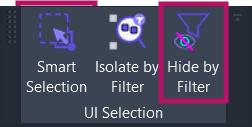
The button is enabled when elements are selected in the active view.
Features
Section titled “Features”- Multiple hiding criteria - Hide by instance, type, family, category, workset, or phase
- Keyboard shortcuts - Quick selection with single-key hotkeys (I, T, F, C, W, P, U, A)
- Phase support - Hide elements by Phase Created or Phase Demolished
- Element expansion - Optional expansion of groups and nested families for criteria extraction
- Non-linear undo - Unhide Last maintains its own stack, separate from Revit’s undo history
- Unhide All - Quickly restore all hidden elements, categories, and worksets in the view
- Modeless dialog - Window stays open for rapid successive operations
- Position memory - Dialog position persists within Revit session
How to Use
Section titled “How to Use”Basic Workflow
Section titled “Basic Workflow”- Select elements in the Revit view that represent what you want to hide
- Click “Hide by Filter” on the ribbon to open the dialog
- Choose a filter criterion by clicking a chip or pressing its hotkey
- Click “HIDE” or press
Enter/Spaceto execute - Repeat as needed - the dialog stays open for multiple operations
Hide by Instance
Section titled “Hide by Instance”Hides only the selected elements. Use this when you want to hide specific elements without affecting others of the same type.
Hotkey: I
Hide by Type
Section titled “Hide by Type”Finds all elements of the same type(s) as your selection and hides them. Useful for hiding all instances of a specific wall type, door type, or fixture type.
Hotkey: T
Hide by Family
Section titled “Hide by Family”Hides all elements from the same family(ies). This is broader than Type - for example, hiding all chairs from a furniture family regardless of which size variant.
Hotkey: F
Hide by Category
Section titled “Hide by Category”Hides the entire category in the view. This affects all elements in that category, not just those matching your selection.
Hotkey: C
Hide by Workset
Section titled “Hide by Workset”Hides workset visibility in the active view. This option is only available for workshared models.
Hotkey: W
Hide by Phase
Section titled “Hide by Phase”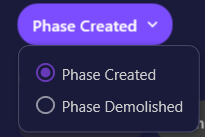
Hides elements based on their phase parameters. Click the Phase chip to select between:
| Option | Description |
|---|---|
| Phase Created | Hide elements created in the same phase(s) as your selection |
| Phase Demolished | Hide elements demolished in the same phase(s) as your selection |
Hotkey: P (opens the phase mode dropdown)
Unhide Last
Section titled “Unhide Last”Reverses the most recent hide operation. This uses a separate undo stack from Revit’s built-in undo, enabling non-linear restoration of hidden elements.
Hotkey: U
Unhide All
Section titled “Unhide All”Restores all hidden elements, categories, and worksets in the current view. This includes:
- Temporarily hidden elements
- Hidden categories
- Hidden worksets (in workshared models)
Hotkey: A
User Interface
Section titled “User Interface”Main Dialog
Section titled “Main Dialog”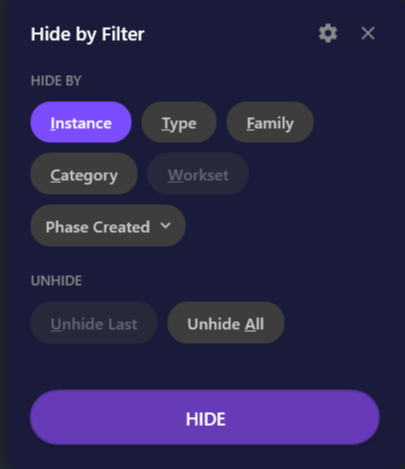
The dialog is divided into two sections:
| Section | Description |
|---|---|
| HIDE BY | Filter criteria chips - select one to determine how elements are matched |
| UNHIDE | Restore operations - undo last hide or unhide all |
Chip selection:
- Click a chip to select it (highlighted in purple)
- Only one chip can be active at a time
- The button text changes to “HIDE” or “UNHIDE” based on your selection
Keyboard shortcuts:
I,T,F,C,W,P- Select hide criteriaU,A- Select unhide operationsEnterorSpace- Execute the selected actionESC- Close the dialog
Window behavior:
- Drag anywhere on the dialog to reposition
- Position is remembered during your Revit session
- The dialog stays open for multiple operations
Element Expansion Settings
Section titled “Element Expansion Settings”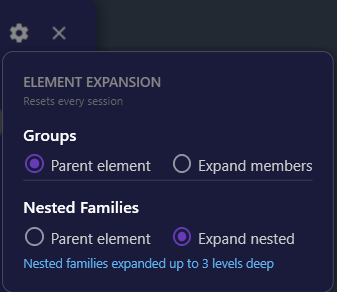
Click the gear icon in the title bar to access element expansion settings. These control how the add-in extracts criteria from complex elements.
Groups:
| Option | Description |
|---|---|
| Parent element | Use the group element itself for criteria extraction (default) |
| Expand members | Extract criteria from individual group members |
Nested Families:
| Option | Description |
|---|---|
| Parent element | Use the parent family instance for criteria |
| Expand nested | Include nested family sub-components (default) |
Nested family expansion is limited to 3 levels deep for performance.
Use Cases
Section titled “Use Cases”Coordinating Disciplines
Section titled “Coordinating Disciplines”Select a duct element and hide by Category to focus on structural or architectural elements while coordinating.
Reviewing Phases
Section titled “Reviewing Phases”Select elements from a construction phase and hide by Phase Created to focus on other phases.
Isolating Families
Section titled “Isolating Families”Select one chair instance and hide by Family to hide all chairs in the view, regardless of type.
Workset Management
Section titled “Workset Management”In workshared models, select elements and hide by Workset to quickly hide content by team or discipline assignment.
Design Iteration
Section titled “Design Iteration”Select a design option element and hide by Type to compare competing options.
Non-Destructive Editing
Section titled “Non-Destructive Editing”Hide distracting categories while making detailed edits. Later, use Unhide Last to restore visibility without losing your edits—unlike Revit’s undo, which would require reverting all your changes.
Tips & Best Practices
Section titled “Tips & Best Practices”- Keyboard shortcuts - Learn the hotkeys for rapid operations:
I-T-F-C-W-Pfor hiding,U-Afor unhiding - Multiple operations - The dialog stays open, so perform several hide operations in sequence
- Selection cleared - After a successful hide, the selection is automatically cleared
- View templates - Hide operations are temporary; use View Templates for persistent visibility control
- Window position - Drag the dialog to a convenient location; it remembers the position during your session
- Assign a shortcut - For even faster access, assign a keyboard shortcut to the Hide by Filter command in Revit Options
Limitations
Section titled “Limitations”| Limitation | Details |
|---|---|
| Requires selection | The Hide by Filter button is only enabled when elements are selected |
| View-specific | Hiding operations apply only to the active view |
| Model elements only | Annotation elements are automatically filtered out |
| Read-only documents | Cannot hide elements in read-only or linked documents |
| Single-level undo | Unhide Last tracks only the most recent hide operation per view |
| View-specific undo | Unhide Last state is maintained per view—switching views accesses that view’s undo state |
| Workset availability | Workset hiding only available in workshared models |
Troubleshooting
Section titled “Troubleshooting”Hide by Filter button is grayed out
Section titled “Hide by Filter button is grayed out”The button requires elements to be selected. Select one or more model elements in the view first.
Workset chip is disabled
Section titled “Workset chip is disabled”The Workset option is only available for workshared models. If your model is not workshared, this option is disabled and grayed out.
Unhide Last is disabled
Section titled “Unhide Last is disabled”Unhide Last tracks the most recent hide operation per view. It becomes unavailable when:
- You switch to a different view - each view has its own undo state
- You perform another hide operation - only the latest hide is tracked
- You click Unhide All - clears the undo state for that view
Note: Closing and reopening the dialog does NOT clear the undo state. You can hide elements, close the dialog, do other work in Revit, reopen the dialog, and still use Unhide Last.
No elements were hidden
Section titled “No elements were hidden”This can happen when:
- All selected elements are annotation elements (only model elements can be hidden)
- Elements cannot be hidden in the current view (e.g., view-specific restrictions)
- No elements match the selected criteria after expansion
Phase option not finding elements
Section titled “Phase option not finding elements”Ensure your model has phases defined and elements have phase parameters assigned. Some element categories don’t support phasing.
Related Tools
Section titled “Related Tools”- Isolate by Filter - Similar interface for isolating elements instead of hiding
- Color Tools - Apply color overrides using similar filter criteria
- Smart Selection - Select similar elements based on various criteria