
Rotate Active View
Rotate Active View provides quick, interactive rotation of plan views and 3D views. The modeless dialog offers preset angle chips for common rotations, custom angle input, and an option to maintain the current zoom level after rotation. User preferences are automatically saved per view type, making repeated rotations faster.
Getting Started
Section titled “Getting Started”Find Rotate Active View on the Amorphous ribbon tab in the View Tools panel.

The button is enabled when you are in:
- Floor plans
- Ceiling plans
- Structural plans
- 3D orthographic views
- 3D perspective views
Features
Section titled “Features”- Preset angle chips - One-click buttons for 15, 45, 90, and 180 degree rotations
- Custom angle input - Enter any rotation angle in degrees
- Direction control - Rotate clockwise (CW) or counter-clockwise (CCW)
- Keep Zoom option - Maintain current zoom level or zoom to extent after rotation
- Persistent preferences - Remembers last angle and Keep Zoom setting per view type (plan vs 3D)
- Keyboard shortcuts - Full keyboard control for fast operation
- Modeless dialog - Stays open for multiple rotations without re-launching
How to Use
Section titled “How to Use”Basic Workflow
Section titled “Basic Workflow”- Open a plan view or 3D view
- Click “Rotate Active View” on the ribbon
- Select a rotation angle by clicking a preset chip (15, 45, 90, or 180)
- Click “CW” or “CCW” to rotate clockwise or counter-clockwise
- Close the dialog when finished, or continue rotating
Rotation Dialog
Section titled “Rotation Dialog”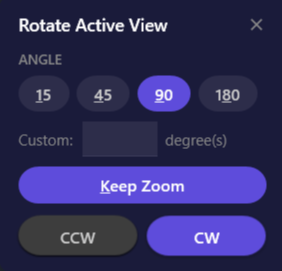
The rotation dialog appears as a floating, draggable window that stays on top of Revit.
| Element | Description |
|---|---|
| Angle chips (15, 45, 90, 180) | Click to select a preset rotation angle. Underlined characters indicate keyboard shortcuts. |
| Custom field | Type any rotation angle in degrees. Clears preset selection when used. |
| Keep Zoom | When enabled, maintains your current zoom level and pan position after rotation |
| CCW | Rotate the view counter-clockwise by the selected angle |
| CW | Rotate the view clockwise by the selected angle (primary action) |
Using Custom Angles
Section titled “Using Custom Angles”- Click in the Custom field (or just start typing)
- Enter any positive number (e.g., 22.5, 30, 72)
- Click CW or CCW to apply the rotation
Keep Zoom Option
Section titled “Keep Zoom Option”By default, the view zooms to fit the content after rotating. Enable Keep Zoom to maintain your current zoom level and pan position:
| Keep Zoom | Behavior After Rotation |
|---|---|
| Off (default) | View zooms to fit all content |
| On | View maintains current zoom level and center point |
This is useful when you want to stay focused on a specific area while viewing it from different angles.
Keyboard Shortcuts
Section titled “Keyboard Shortcuts”When the dialog is open and the custom angle text field is not focused:
| Key | Action |
|---|---|
1 | Select 15 degrees |
4 | Select 45 degrees |
9 | Select 90 degrees |
8 | Select 180 degrees |
K | Toggle Keep Zoom |
Enter | Rotate clockwise |
Escape | Close dialog |
Options & Settings
Section titled “Options & Settings”The dialog automatically saves your preferences separately for plan views and 3D views:
| Setting | Description | Default |
|---|---|---|
| Last angle | The most recently used rotation angle | 90 |
| Keep Zoom | Whether to maintain zoom level after rotation | Off |
When you switch between plan views and 3D views, the dialog loads the appropriate saved preferences for that view type.
Preferences are stored at: %AppData%\Amorphous\RotateActiveView\config.json
Use Cases
Section titled “Use Cases”Sheet Coordination
Section titled “Sheet Coordination”Rotate a plan view to match the orientation of other views on a sheet, ensuring consistent visual presentation across your documentation.
Quick 3D Review
Section titled “Quick 3D Review”Rotate 3D views incrementally to quickly inspect different sides of a model. The modeless dialog lets you click CW or CCW multiple times in rapid succession.
Presentation Preparation
Section titled “Presentation Preparation”Align views to a specific orientation for client presentations or design reviews.
Angled Buildings
Section titled “Angled Buildings”Match the orientation of an existing non-north-aligned site or building for drafting clarity.
Supported View Types
Section titled “Supported View Types”| View Type | Supported |
|---|---|
| Floor Plans | Yes |
| Ceiling Plans | Yes |
| Structural Plans | Yes |
| 3D Orthographic Views | Yes |
| 3D Perspective Views | Yes |
| Section Views | No |
| Elevation Views | No |
| Drafting Views | No |
| Schedule Views | No |
| Legends | No |
Tips & Best Practices
Section titled “Tips & Best Practices”- Rapid rotations - The dialog is modeless, so you can click CW or CCW multiple times in succession to rotate incrementally
- Precise custom angles - Need a specific non-preset angle (e.g., 22.5 degrees)? Type it in the custom field. The value is remembered for your next rotation in the same view type
- Keyboard efficiency - Use keyboard shortcuts for fastest operation: press
9thenEnterfor a quick 90-degree clockwise rotation - Returning to original orientation - To reset a plan view’s rotation, select the crop region and rotate it back by the inverse of your previous rotations, or use Align View to Edge to quickly snap to a specific element’s orientation
- 3D section box pivot - When a section box is active in a 3D view, the rotation pivots around the section box center for more predictable results
- Assign a shortcut - In Revit Options > Keyboard Shortcuts, assign a key to Rotate Active View for even faster access
Limitations
Section titled “Limitations”| Limitation | Details |
|---|---|
| View Template Protection | Template views cannot be rotated - the command is disabled |
| Section/Elevation Views | Not supported; the button is disabled in these view types |
| Zoom accuracy | When Keep Zoom is disabled, the zoom-to-fit may not perfectly match the original view extent, especially for rotated crop boxes |
Related Tools
Section titled “Related Tools”- Align View to Edge - Align a view to match a selected element orientation
- Interactive View Range - Adjust view range cut planes interactively
- Zoom Selected - Quickly zoom to selected elements