
Smart Selection
Smart Selection enables you to expand a small selection of elements into a larger selection based on shared characteristics. Instead of manually selecting similar elements one by one, select a few sample elements and let Smart Selection find all matching elements by category, family, type, phase, or workset.
Getting Started
Section titled “Getting Started”Find Smart Selection on the Amorphous ribbon tab in the UI Selection panel.
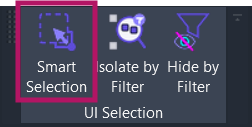
The button is enabled when one or more elements are selected in Revit. If nothing is selected, the button is disabled.
Features
Section titled “Features”- Multi-criteria filtering - Filter by Category, Family, Type, Phase (Created/Demolished), or Workset
- Three selection scopes - Draw a rectangle, search the active view, or search the entire model
- Group and nested family expansion - Optionally expand groups and nested families for criteria extraction
- Keyboard hotkeys - Quick access via single-key shortcuts for faster workflow
- Persistent settings - Remembers your last filter type and scope between sessions
- Modeless dialog - Stays open for repeated selections without blocking Revit
How to Use
Section titled “How to Use”Basic Workflow
Section titled “Basic Workflow”- Select sample elements - Pick one or more elements that represent what you want to match
- Click “Smart Selection” on the ribbon
- Choose a filter type - Select how to match elements (Category, Family, Type, Phase, or Workset)
- Choose a scope - Select where to search (Rectangle, View, or Model)
- Click Apply (or press
Enter/Space) - All matching elements are selected in Revit
Selecting by Category
Section titled “Selecting by Category”Use Category to select all elements of the same Revit category, regardless of family or type.
Example: Select one wall, choose Category filter, and click Apply to select all walls in the scope.
Selecting by Family
Section titled “Selecting by Family”Use Family to select all elements from the same family, regardless of type variations.
Example: Select a “Basic Wall” element, choose Family filter, and click Apply to select all Basic Wall instances (of any type) in the scope.
Selecting by Type
Section titled “Selecting by Type”Use Type to select elements of the exact same type - this is the most specific filter.
Example: Select a “Generic - 200mm” wall, choose Type filter, and click Apply to select only walls of that exact type.
Selecting by Phase
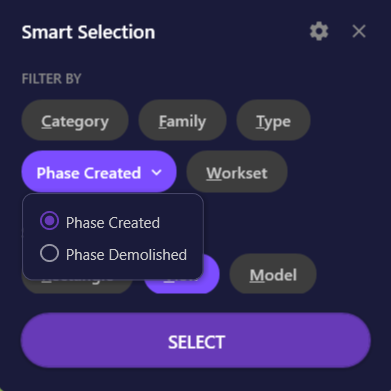
Section titled “Selecting by Phase”Use Phase to select elements based on their phase properties:
- Select elements that were created in (or demolished during) the target phase
- Click the Phase chip - a dropdown appears
- Choose the mode:
- Phase Created - Match elements created in the same phase(s)
- Phase Demolished - Match elements demolished in the same phase(s)
- Click Apply
Selecting by Workset
Section titled “Selecting by Workset”Use Workset to select all elements assigned to the same workset(s).
Rectangle Selection
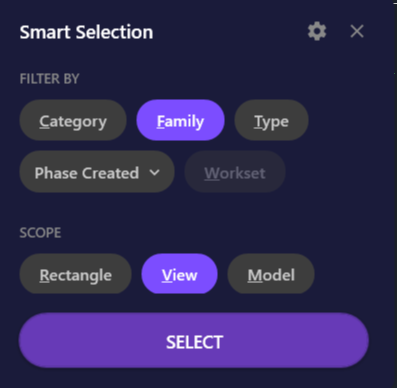
Section titled “Rectangle Selection”When you choose Rectangle scope:
- The dialog hides temporarily
- An instruction bar appears: “Draw a rectangle to select elements”
- Click and drag to draw a selection rectangle
- Matching elements within the rectangle are selected
- The dialog reappears
User Interface
Section titled “User Interface”Main Dialog
Section titled “Main Dialog”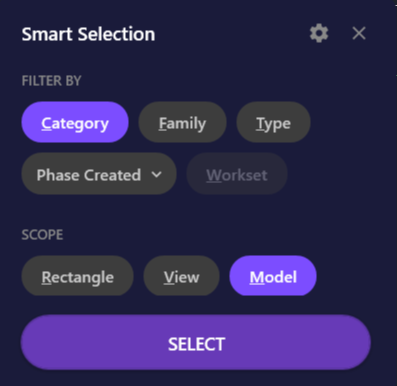
The dialog uses a chip-based interface where you select one filter type and one scope.
| Element | Description |
|---|---|
| Filter chips (C, F, T, P, W) | Choose how to match elements - Category, Family, Type, Phase, or Workset |
| Scope chips (R, V, M) | Choose where to search - Rectangle, View, or Model |
| Settings button (gear icon) | Open expansion settings for groups and nested families |
| Apply button | Execute the selection (shows “REGION SELECT” for Rectangle scope) |
Keyboard shortcuts:
C,F,T,P,W- Select filter typeR,V,M- Select scopeEnterorSpace- Apply selectionESC- Close dialog
Expansion Settings
Section titled “Expansion Settings”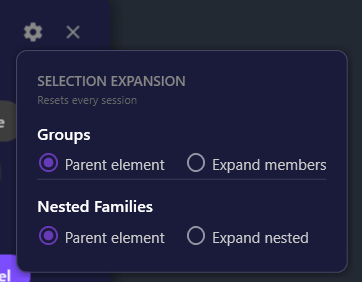
Click the gear icon to access expansion settings:
| Setting | Options | Description |
|---|---|---|
| Groups | Parent element / Expand members | When “Expand members”, criteria is extracted from group members instead of the group itself |
| Nested Families | Parent element / Expand nested | When “Expand nested”, nested family instances (up to 3 levels deep) are analyzed |
Use Cases
Section titled “Use Cases”| Scenario | Filter | Scope | Example |
|---|---|---|---|
| Bulk property editing | Type | View/Model | Select all doors of a specific type to change parameters |
| Quality control | Phase | Model | Find all elements created in a specific phase for review |
| Model organization | Workset | View/Model | Select all elements on a workset for visibility control |
| Graphic overrides | Category | View | Select all furniture in a view for color override |
| Data export | Family | Model | Select all instances of a family for scheduling |
| Regional cleanup | Type | Rectangle | Select specific element types in a drawn region |
Options & Settings
Section titled “Options & Settings”Persistent Settings
Section titled “Persistent Settings”Smart Selection remembers these settings between Revit sessions:
| Setting | Description |
|---|---|
| Last filter type | The most recently used filter (Category, Family, Type, Phase, Workset) |
| Last scope | The most recently used scope (Rectangle, View, Model) |
| Last phase mode | The most recently used phase mode (Created or Demolished) |
Settings are stored in %AppData%\Amorphous\SmartSelection\settings.json.
Session Settings
Section titled “Session Settings”These settings reset when you restart Revit:
| Setting | Description |
|---|---|
| Group expansion | Whether to expand groups for criteria extraction |
| Nested family expansion | Whether to expand nested families for criteria extraction |
| Dialog position | The dialog remembers its screen position within a session |
Tips & Best Practices
Section titled “Tips & Best Practices”- Start specific, go broader - Begin with Type filter for precise matches, then try Family or Category if you need more elements
- Use View scope first - View scope is faster than Model scope; only use Model when you need project-wide selection
- Keyboard shortcuts - Learn the hotkeys (C/F/T/P/W for filters, R/V/M for scopes) for rapid operation
- Sample selection matters - For Family and Type filters, the matching criteria comes from your initial selection
- Group contents - If you need to match elements inside groups, enable “Expand members” in settings before applying
- Combine with other tools - Use with Zoom Selected to quickly view your selection, or with Isolate by Filter / Hide by Filter to control visibility of matching elements
Limitations
Section titled “Limitations”| Limitation | Details |
|---|---|
| Workset filter | Only available in workshared (multi-user) projects |
| Initial selection limit | Limited to 1000 elements for performance |
| Large model performance | Model scope with 10,000+ matching elements may be slow |
| Missing metadata | Elements without category, family, type, phase, or workset information are excluded |
| View-specific elements | Some view-specific elements may not be selectable depending on the active view type |
Troubleshooting
Section titled “Troubleshooting”No elements found matching criteria
Section titled “No elements found matching criteria”This can occur when:
- The sample elements have no matchable metadata (try a different filter type)
- The scope doesn’t contain matching elements (try a broader scope)
- Phase filter is used with elements that don’t have phase properties
Workset chip is disabled
Section titled “Workset chip is disabled”The Workset filter only works in workshared models. Enable worksharing in your project to use this filter.
Selection seems incomplete
Section titled “Selection seems incomplete”If groups or nested families aren’t being analyzed:
- Click the gear icon to open settings
- Enable “Expand members” for groups
- Enable “Expand nested” for nested families
- Try the selection again
Dialog position resets
Section titled “Dialog position resets”The dialog position is remembered within a Revit session but resets when you restart Revit. This is expected behavior.
Related Tools
Section titled “Related Tools”- Zoom Selected - Instantly zoom to fit your selection
- Color Tools - Apply color overrides by filter with QA checking capabilities
- Isolate by Filter - Isolate elements using view filters
- Hide by Filter - Hide elements using view filters